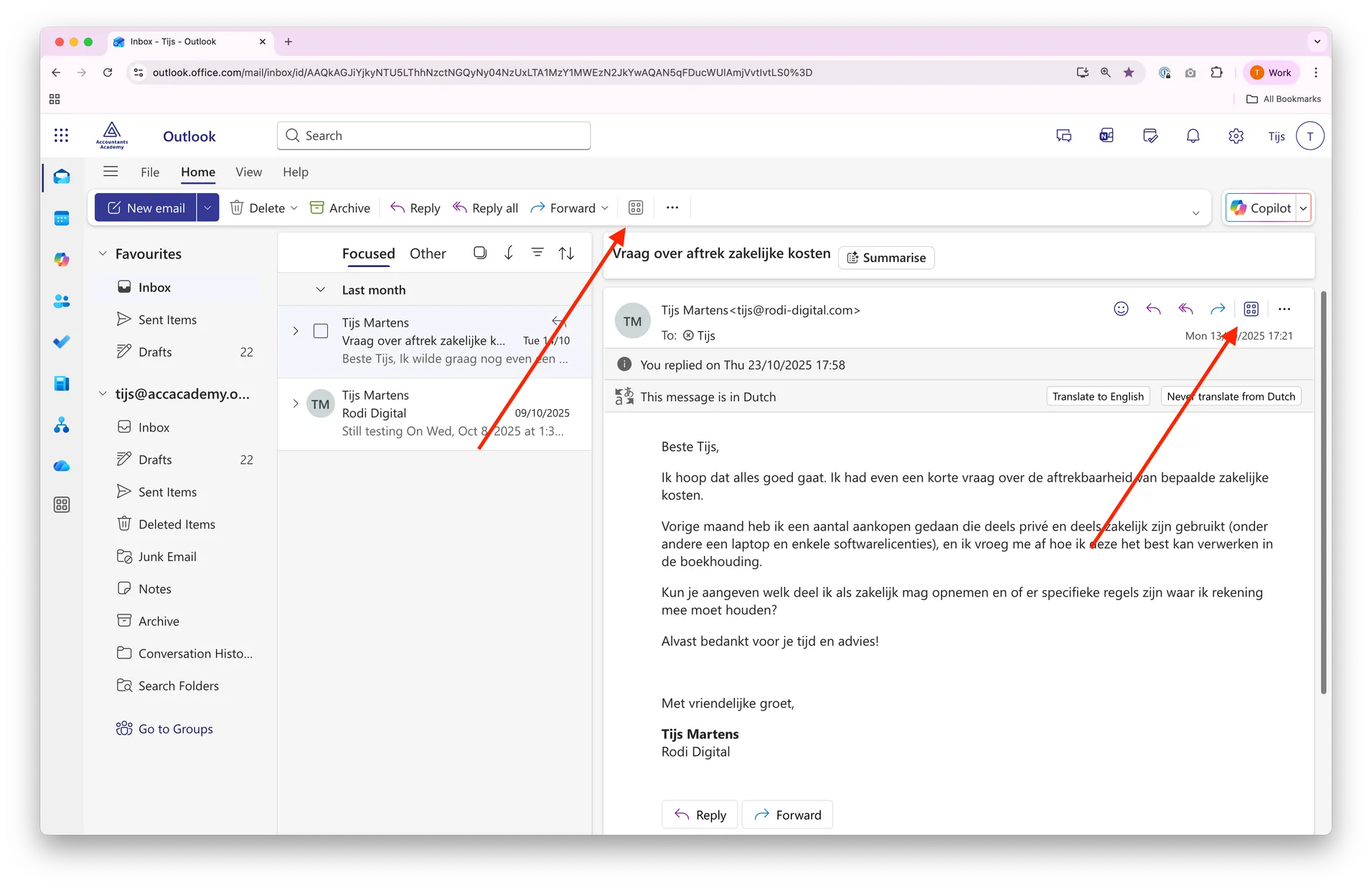
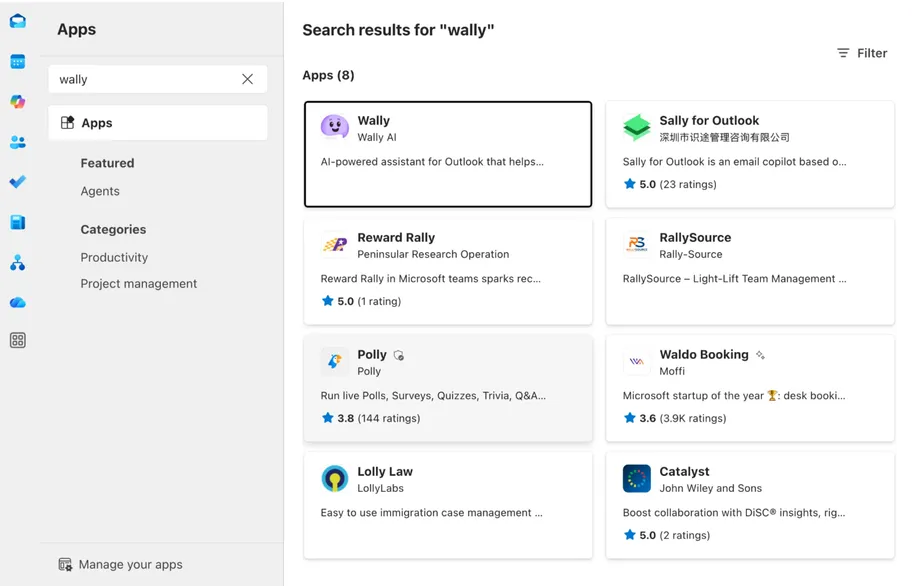
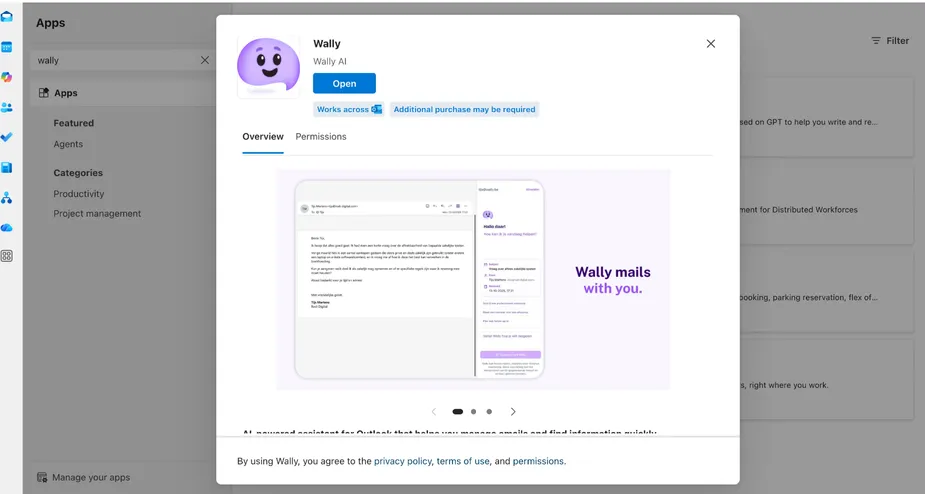
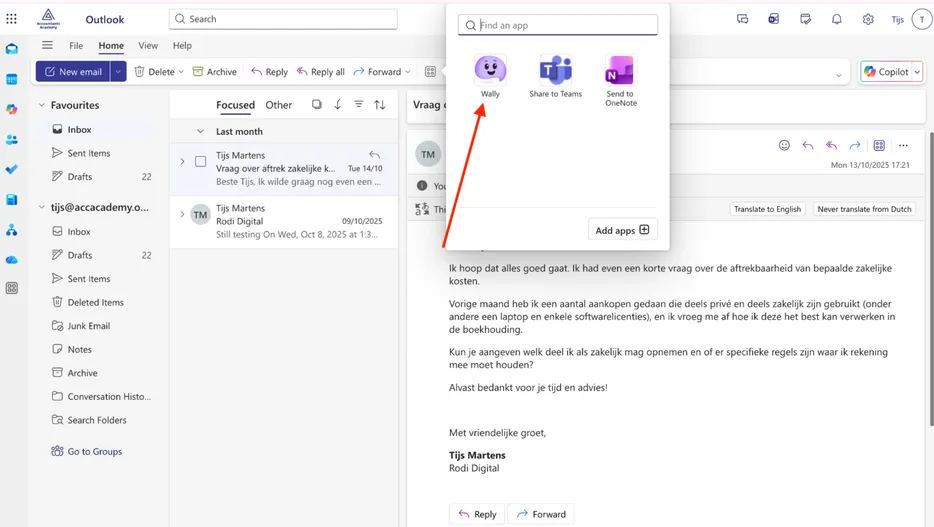
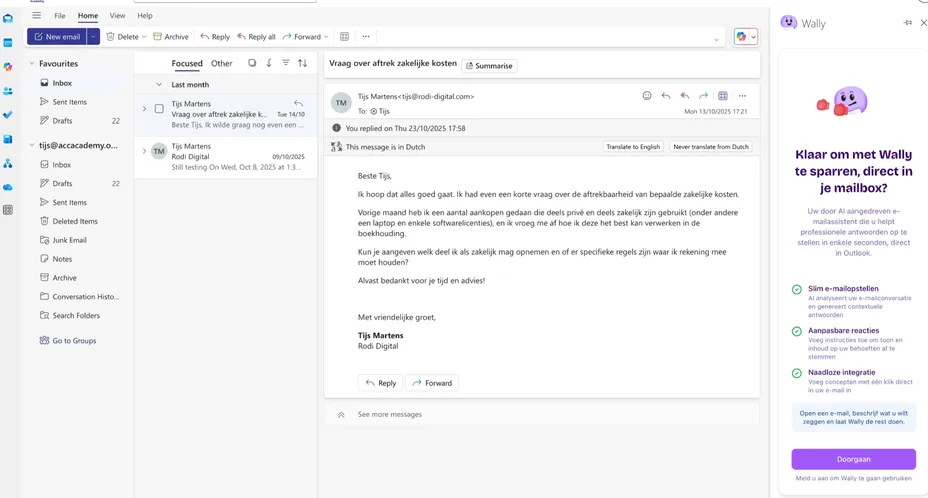
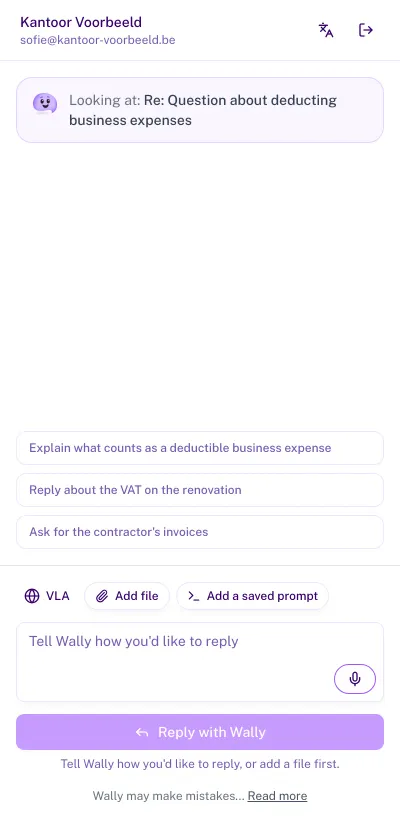
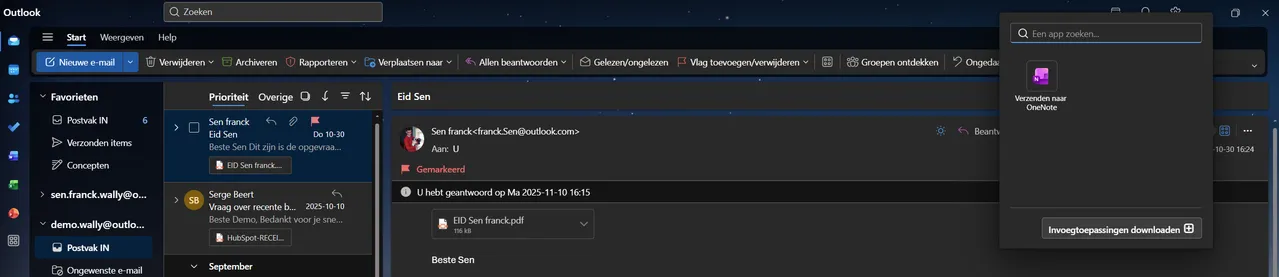
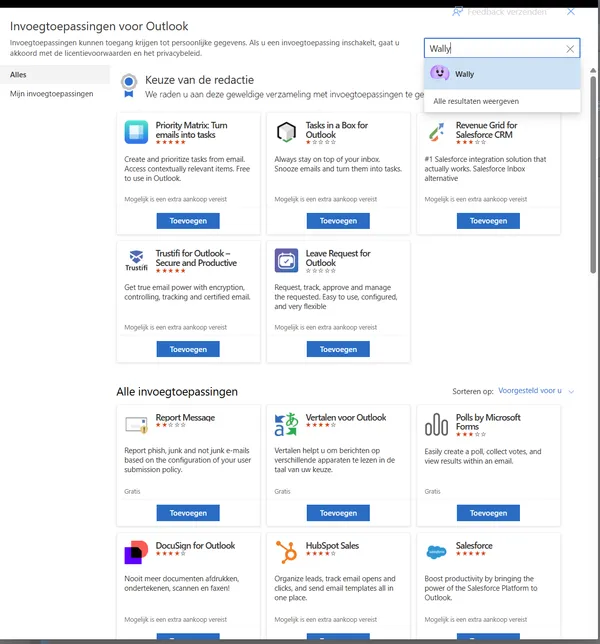
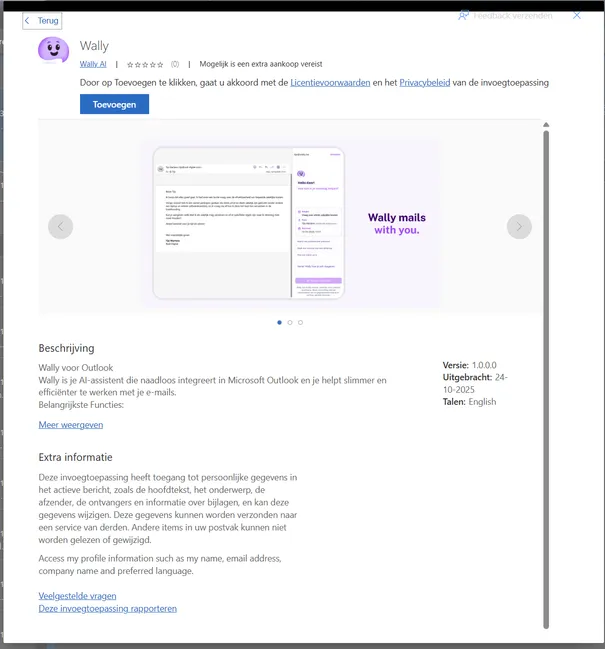
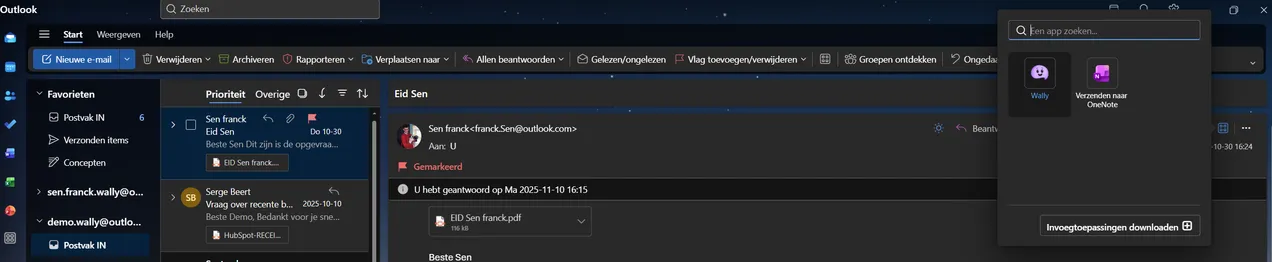
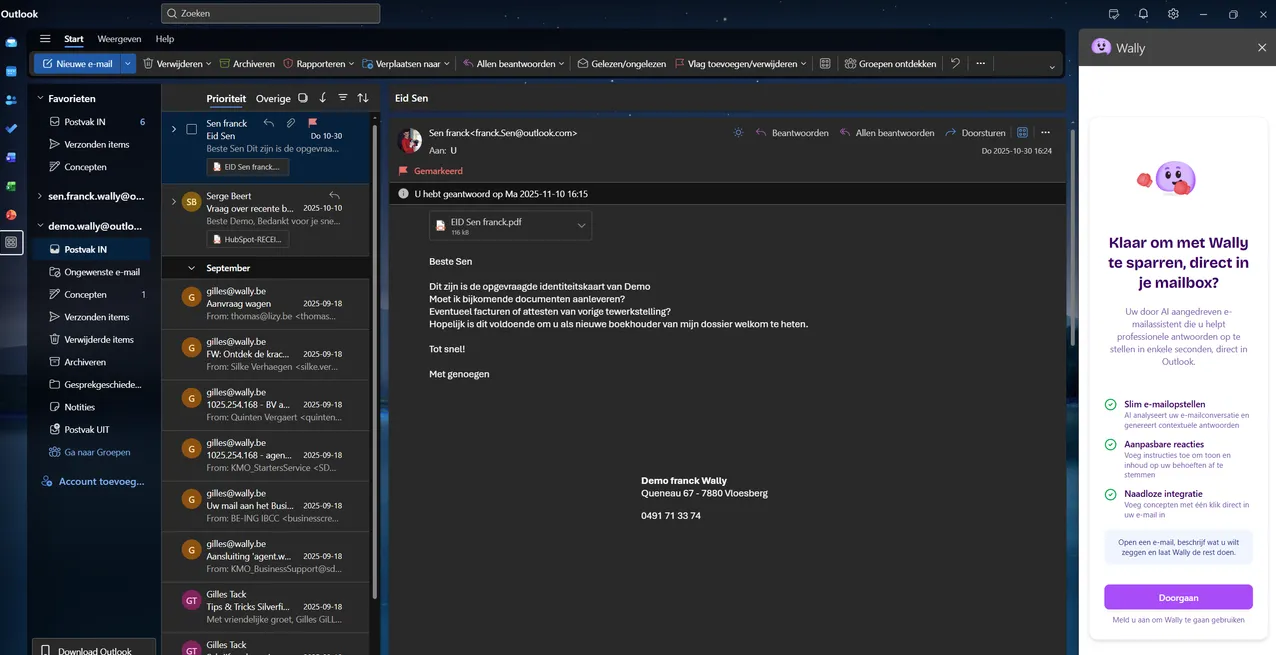
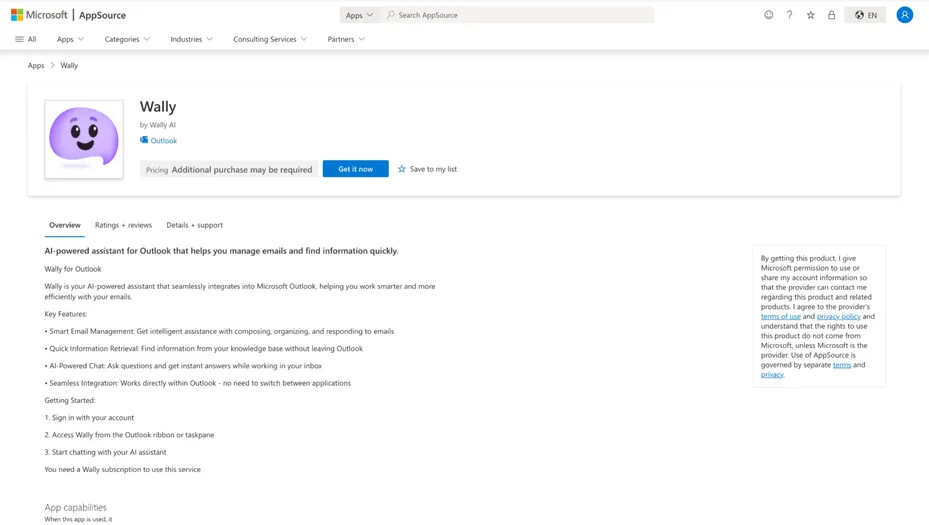
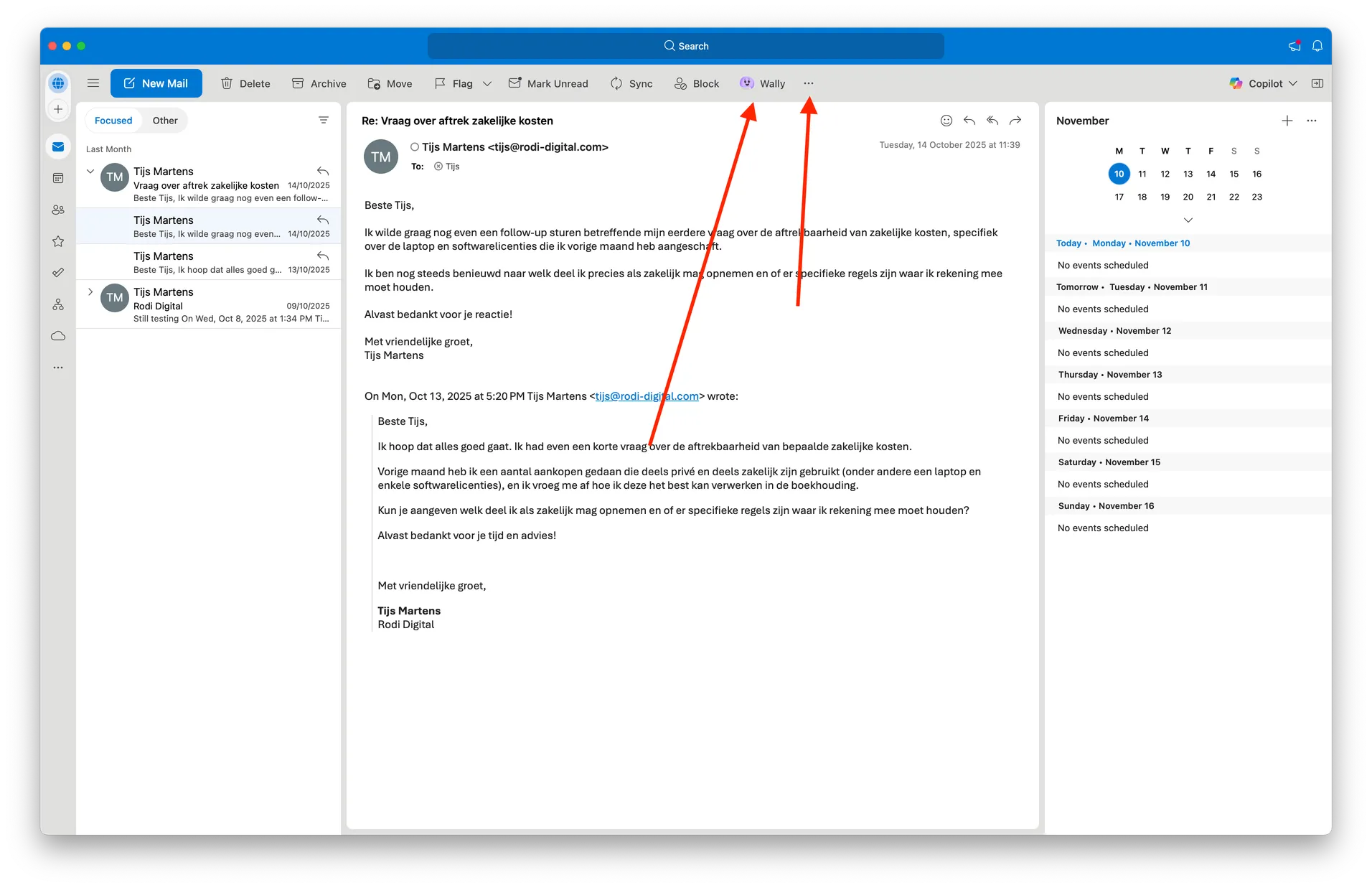
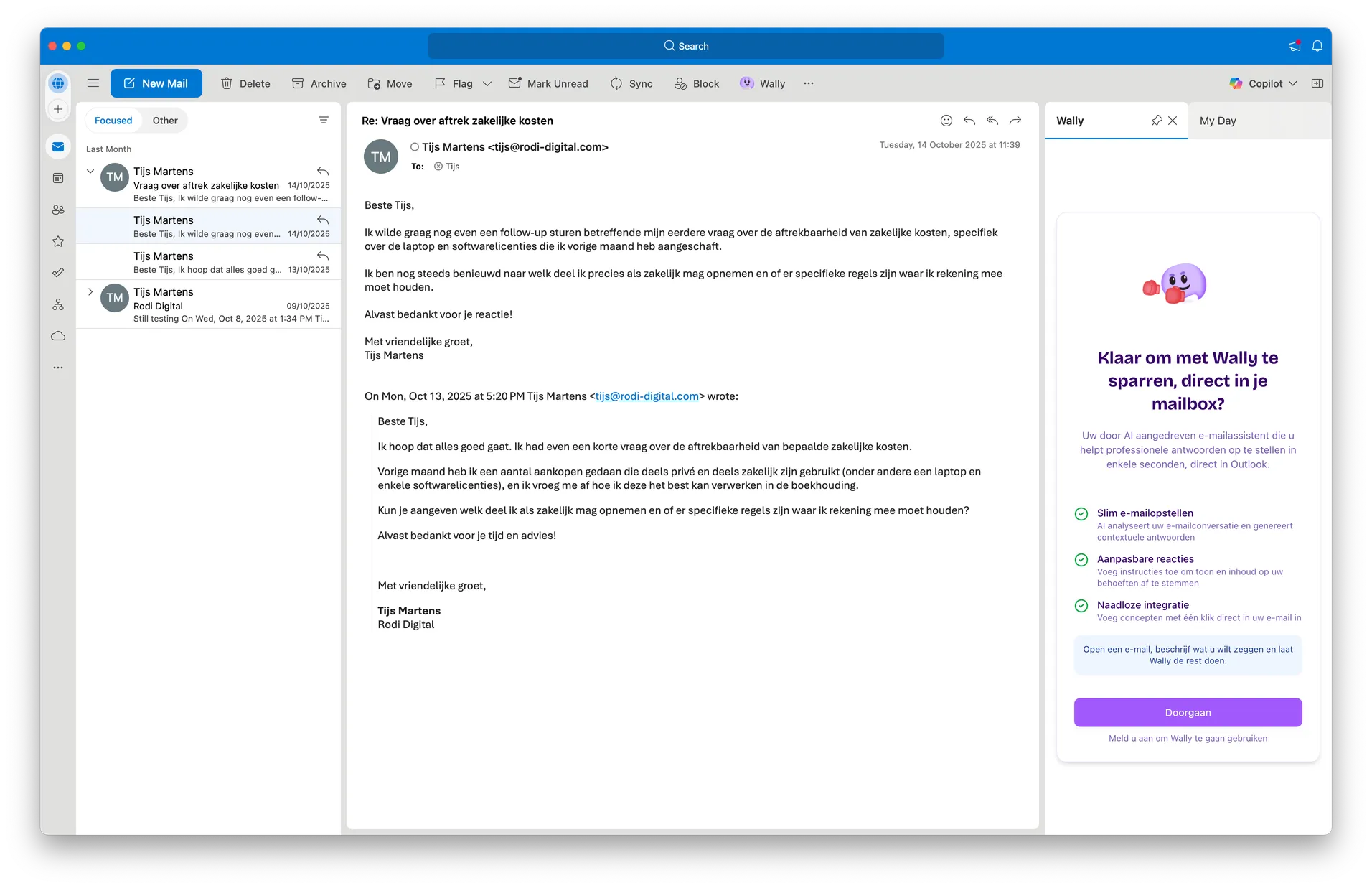
The Outlook add-in brings Wally straight into your mailbox. You can have incoming emails analysed and draft professional replies faster, with extra context from your email history and (where relevant) from your knowledge sources.
I get the message "Active subscription required. Please upgrade your plan to continue."
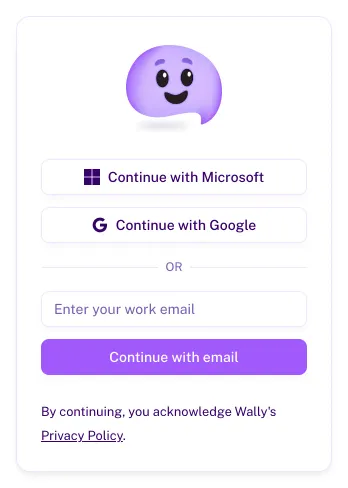
You get this message when you log in to the Outlook add-in with an email address that Wally does not recognise. Make sure you log in with the same email address you use to authenticate in Wally in the browser or in the Wally app (so not necessarily the email address of your mailbox, which can be different).
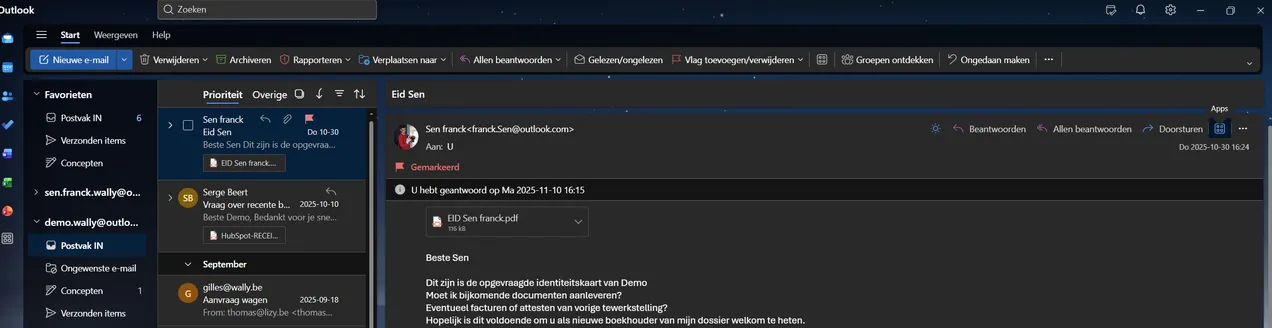
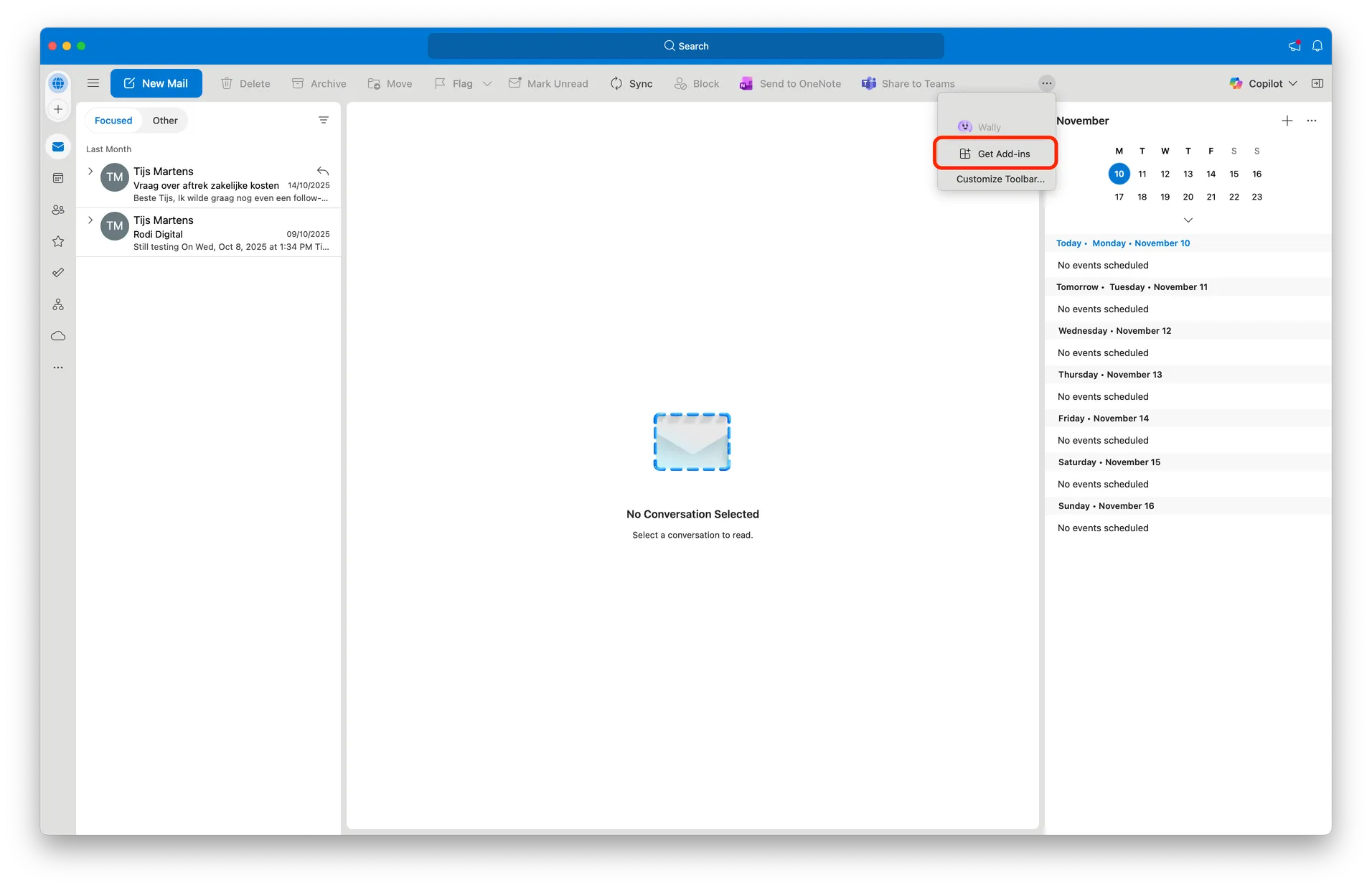
I can't find the "Add apps" button in Outlook. What now?
Where do I find the open-source licences of the add-in?
At the top of the add-in, click the info icon (About Wally) next to the language switcher and choose Open-source licences. You then see the open-source software the add-in uses, with the licence and a link to the source code of each package. The same menu also opens the Privacy Policy.
This is the most common cause. Your Microsoft 365 administrator has disabled self-service installation of add-ins. This is a common security setting in business environments.
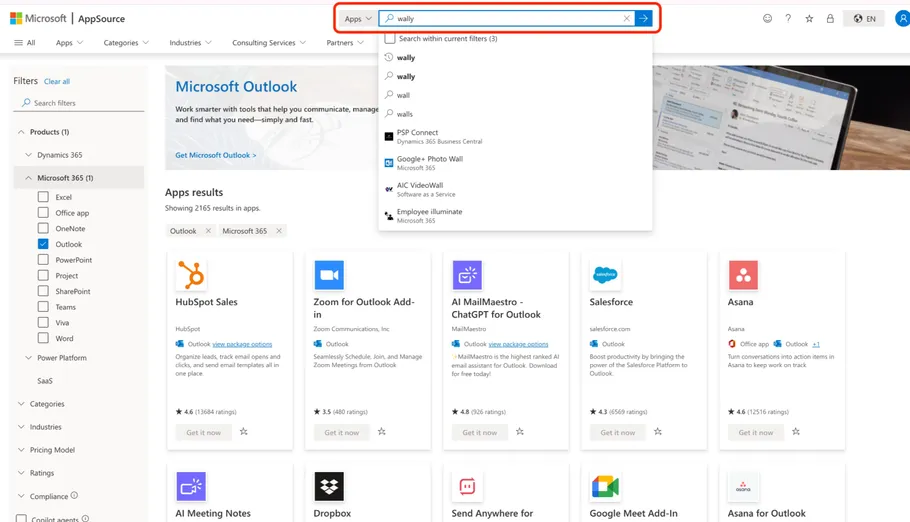
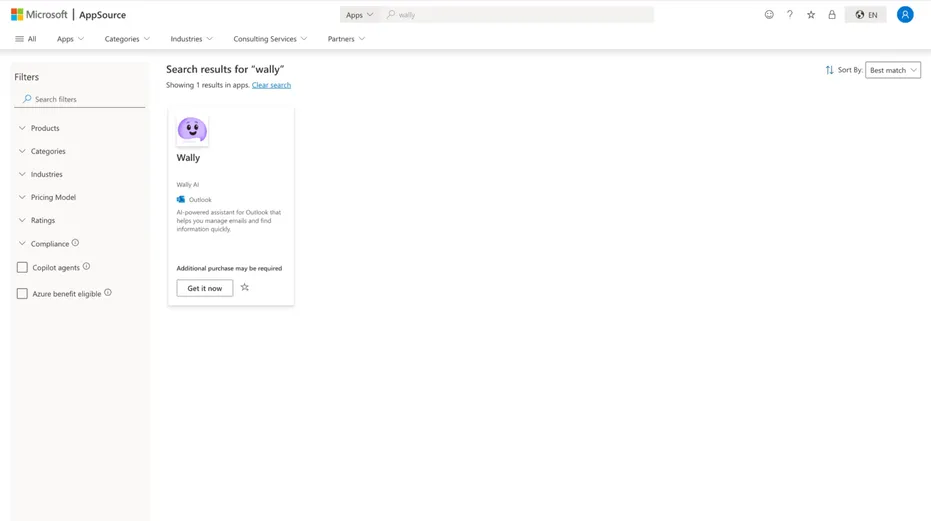
How do I get the Wally add-in installed?
Contact your IT administrator or helpdesk and ask for one of the following options:
Option A: Have the Wally add-in deployed centrally (recommended)
Ask your administrator to deploy the Wally Outlook add-in centrally through the Microsoft 365 admin center. They can install the add-in for you specifically, for a group, or for the whole organisation.
Option B: Enable add-in installation for your account
Your administrator can enable self-service add-in installation, so you can install the Wally add-in yourself.
Cause 2: Your configuration does not support add-ins
In some cases Outlook add-ins are technically not possible, even with the help of an IT administrator.
Email configurations without add-in support
POP3 or IMAP email accounts — Outlook add-ins only work with Exchange. If your email is configured through POP3 or IMAP, add-ins are not supported.
Exchange Server older than 2016 — Your mailbox must run on Exchange 2016 or newer.
On-premises Exchange without EWS — Exchange Web Services (EWS) must be enabled and reachable over the internet.
Outlook mobile with on-premises Exchange — Add-ins are not supported in Outlook on Android or iOS with on-premises Exchange accounts.
Microsoft 365 licences without add-in support
The following licences do not support Outlook desktop and therefore no add-ins either:
Microsoft 365 Frontline (F1, F3) — These licences do not give access to Outlook desktop.
Microsoft 365 Business Basic — Web and mobile apps only, no desktop Outlook.
Microsoft 365 E1 / A1 — Web and mobile apps only, no desktop Outlook.
Exchange Online Plan 1/2 (standalone) — Without an additional Office licence, no access to Outlook desktop.
What can you do?
If you are in one of these situations, there are two options:
Use Outlook Web (outlook.office.com) — Some add-ins do work in the web version of Outlook.
Ask your IT administrator for a licence upgrade — An upgrade to Microsoft 365 Business Standard, E3, or higher gives access to Outlook desktop with add-in support.